
Before attaching an identity document, check where the account’s KYC request says to send it. A clear scan sent to the wrong destination is not a useful submission, and choosing a route without checking its destination can expose information that is difficult to take back.
For KYC at the online casino Sevencasino, the stated document routes are a profile upload or an email to its KYC department. That gives an account holder a choice of delivery method, but each route calls for a different destination check: the correct account and upload area for a profile submission, or a confirmed department address for email. The stated routes do not supply an email address or establish that a particular upload screen is currently available.
What the route choice does—and does not—settle
Profile upload and email are ways to deliver documents, not different standards of identity. Choosing one does not establish which documents will be requested, whether a file will be accepted, or how long a review will take. Those details must come from the instructions applicable to the account. If a request names specific items or gives a deadline, use that request rather than a general KYC checklist.
The route that seems easiest may not be the right one for a particular request. A profile upload is useful if the account holder can access the appropriate account area and identify where the requested document belongs. Email is an option when its destination has been confirmed and any instructions for using it are clear. Neither choice, on its own, proves that the documents have reached the team reviewing them.
It also helps to distinguish a route offered in general from directions given for an individual case. If an account-specific message points to one method, check before substituting the other. The aim is not merely to transmit a file; it is to make the requested material identifiable without sending unnecessary copies.

Using a profile upload
For a profile submission, start by reaching the account through a trusted route rather than following an unexpected message to a login page. Check that the signed-in account is the one undergoing verification. Even a readable document may be hard to match to the intended request if it is attached under a different account.
Then read the instructions shown for that account. If a document-upload area is available, check its labels and any file guidance before selecting anything. A field marked for a particular document gives more direction than an unlabelled attachment option. If no suitable upload area appears, do not put an identity document into an unrelated form or message field just to get it sent. Ask through an established support route where the requested file belongs.
After an attempted upload, keep three events separate: selecting a file, submitting it, and receiving confirmation that it was received or accepted for review. A filename visible before submission may mean only that the file has been selected. An upload confirmation, if one appears, need not mean the document has passed review. Note what the account actually confirms, using its wording rather than treating every status as approval.
This distinction matters when following up. If a file was selected but the submission step is uncertain, the useful question is whether anything was transmitted. If a submission was confirmed but the review status is unclear, ask about the review instead. Those are different problems, and describing them accurately makes it easier to avoid an unnecessary second upload.
When the profile route is not straightforward
Suppose, hypothetically, an account holder can sign in but finds no place matching the document request. Trying several unrelated upload fields could put the file in the wrong context. A focused question is better: where should this requested document be submitted? Use the established support process to identify the account, without attaching the full identity document to that initial question.
Likewise, if a field is available but its label does not match the requested item, clarify its purpose rather than assuming any upload will do. Should support direct the account holder to email instead, the address still needs independent confirmation before the attachment is sent.
Using email to the KYC department
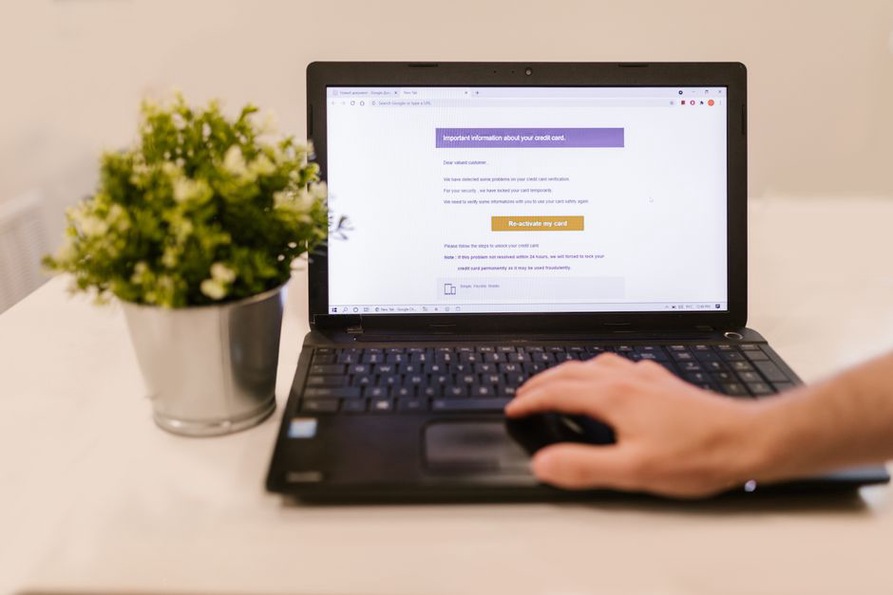
Email changes the destination risk. A mistyped or impersonated address could send an identity document to someone other than the intended recipient. Obtain the current KYC address from a trusted source associated with the account, or confirm it through an established support channel. Do not construct an address from the casino’s name or rely solely on a search snippet or the sender details of an unexpected message.
Once the address is confirmed, follow any instructions for identifying the existing verification request in the subject line or message body. If none are available, ask what information the department needs instead of adding personal details on the assumption that more will help. Attach only the files requested for the account, in any format the applicable instructions specify.
Review the recipient field after adding the attachments. It is easy to concentrate on choosing the right files and overlook an address that was mistyped or replaced by an unwanted autocomplete suggestion. That final check serves a different purpose from confirming that an address was genuine in the first place: both the intended destination and the address entered in the draft need to match.
A message in a Sent folder shows that it was sent from the mailbox; it does not establish delivery to the intended department or acceptance of the files. Keep the sent message and relevant replies while the request is being resolved, and watch for responses through the channels normally used for the account. If the email bounces, verify the address through a trusted channel before trying a different one.
Prepare the files for the route you select
Start with the actual request, not a presumed universal list of KYC documents. Identify each item requested, any file restrictions, and whether the request specifies a particular part of a document. If a direction is ambiguous, ask what is needed rather than sending several extra records in case one proves useful.
For either route, check that the file can be read. Is the relevant information visible? Is any edge cut off, or has blur made part of the image unclear? Confirm that the file selected is the one intended, particularly if a folder contains several versions with similar names. This is a check of the submission, not a reason to change what the document says.
Do not edit an identity document to alter its contents. If masking information seems necessary for privacy, ask what the verification team permits before changing the file; an incomplete or altered image may not satisfy the request. The same caution applies to a scan that includes more than intended. Check the frame before sending it, and seek clarification rather than making an unsupported guess about what may be removed.
A short pre-submission check can keep the decisions in order:
- Read the account-specific request and identify the files it asks for.
- Choose the profile upload or a confirmed KYC email destination.
- Check each file for legibility and unintended extra information.
- Confirm the signed-in account or entered recipient before sending.
- Keep the submission evidence available through that route; do not mistake it for approval.
Consider a hypothetical request for two separate items. If account instructions identify where each belongs in a profile upload, those labels should guide the selection. If the account holder uses a confirmed KYC email address instead, they can check that both intended files are attached—not an older version or an unrelated scan. This example illustrates the file check; it does not imply that every account needs two documents.
Keep the submission proportionate and private
Identity documents contain personal information, so an unexpected request for one deserves checking even if it mentions KYC. Verify it through the account or an established support channel rather than replying directly to a suspicious message. If the requested email destination differs from the address independently confirmed, pause and clarify the discrepancy before attaching anything.
Use a device and connection you trust, and consider where copies remain afterward. Download folders, shared devices, email drafts, cloud backups, and sent messages can all hold additional files. Retain what is needed to follow up on the submission, while managing other copies according to your security needs and any applicable instructions. Deleting every record immediately can make a later inquiry harder; retaining more copies than needed creates a different privacy concern.
The stated submission routes do not establish a general legal rule about identity checks, consent, retention, or gambling eligibility. Those matters can depend on a person’s circumstances and jurisdiction. Anyone uncertain about legal requirements or eligibility should consult relevant official guidance rather than treating the availability of a submission method as proof that participation is permitted.
If a document is questioned or no response arrives
Read a request for a replacement file closely. The response may identify a problem with legibility, completeness, or the attachment chosen; it may also specify another issue. Correct what was actually identified. Sending a larger collection of documents without direction can expose more information without resolving the problem. If the explanation is too vague to act on, ask which file needs attention and what must change.
If there is no visible update, use the record available from the chosen route to make a focused inquiry. For a profile upload, that might be a notification or confirmation, if one was provided. For email, it might be the sent message and any reply. Describe precisely what the record shows: a file being uploaded or an email being sent is not the same as confirmation that its contents were approved.
Before switching routes after an uncertain attempt, ask whether the original submission was received and whether another is needed. Sending the same sensitive files through both methods without checking may leave duplicate copies in different places. If a new submission is requested, confirm which route to use. For an email retry, check the recipient again before attaching the replacement file—especially if the first message failed because its destination was unclear.