
A laptop can boot to the desktop and still have a failing battery, a locked firmware menu, or a charging port that cuts out when the cable moves. Get the exact model number and configuration before arranging a viewing, and allow time to test the machine unplugged. A quick power-on check tells you little about what it will be like to own.
Check the listing before you travel
Compare the asking price with used laptops of the same configuration, not just the same product name. One model may be sold with several processors, screen resolutions, memory amounts, and storage sizes. “16-inch laptop, fast processor” gives you too little to judge. Ask for the model code, processor, RAM, storage capacity, screen resolution, and whether the charger is included.
Request clear photos of the actual machine: the screen while it is on, keyboard, ports, underside, hinges, charger label, and any damage. The seller should be able to describe defects more precisely than “normal wear.” A low price might make sense for a worn battery or missing charger. It is less reassuring if the seller cannot identify the model or explain an account lock at startup.
Before paying a deposit, find out where and how you can test the laptop. For an in-person purchase, choose a safe place with power and enough time for an inspection. If it will be shipped, read the return terms and check what proof you would need to report a fault. Keep the written description and photos in case the delivered machine differs from the listing.
Confirm the specifications on the machine
Do not rely on a sticker or the seller’s description for the installed hardware. Open the operating system’s device information to confirm the processor, memory, and storage capacity. On Windows, Settings > System > About shows basic specifications, while Task Manager’s Performance tab offers more detail. On a Mac, use About This Mac and System Information. Check the resolution in display settings rather than judging it by screen size.
Compare those figures with the listing, and consult the model’s technical documentation if you plan to upgrade it. Some laptops have soldered memory that cannot be expanded. Others take a replacement drive but limit its size or type. A label such as “Core i7” is not specific enough, either: generation and power class can make a substantial difference to performance.
Check operating-system support before calling an older machine a bargain. Windows 11 requirements include a compatible processor, TPM 2.0, and Secure Boot capability; see the Windows 11 system requirements overview. For a Mac, confirm that the exact model supports an operating-system version suitable for the software you need. An unsupported system may still run, but security updates and application compatibility can become problems.

Inspect the body, screen, and input devices
Look for damage that affects more than appearance
Inspect the laptop with its lid open and closed. Surface scratches are one thing; a bent chassis, separating case seam, or hinge that lifts the surrounding plastic is another. Move the lid slowly. It should open smoothly and hold its position. Check for missing screws, uneven gaps, and tool marks that might suggest a rough repair. A repair is not necessarily a problem, but ask what was replaced.
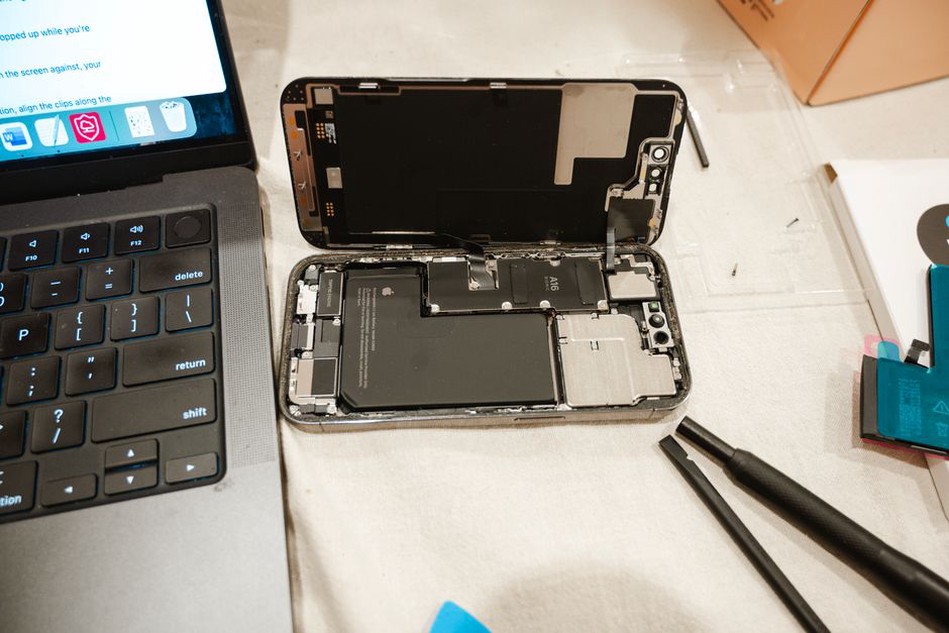
Watch for a raised trackpad, bulging underside, or keyboard deck that no longer sits flat. Any of these can signal a swollen battery. Do not push a bulge back into place or keep charging the machine. Battery damage calls for appropriate service and may make the purchase uneconomical.
View the display at several brightness levels against light and dark backgrounds. Look for cracks, persistent bright or dark pixels, discoloration, flicker, and uneven backlighting. A small flaw near an edge may be tolerable; one in the middle can be difficult to ignore. Tilt the lid while watching the image, since an intermittent picture may point to a cable or hinge-area fault. On a touchscreen, try taps and swipes across the whole panel.
Test every control you will use
Open a text editor and try every letter, number, modifier, function, and arrow key. Check the keyboard backlight if there is one. Move your finger across the entire trackpad and test its physical or haptic click. A sticky key or erratic cursor can be far more annoying in daily use than a scratch on the case. Check the webcam and microphone with a local camera or recording app, then play audio through the speakers and a headphone connection if present.
Bring a USB device or adapter for the ports you expect to use. A port can supply power but fail to transfer data, so test the function you need rather than just checking the fit. Connect to an available Wi-Fi network and see whether Bluetooth can find a nearby device. If you depend on an external monitor, test that connection before buying.
Measure battery condition and charging behavior
Listing claims about battery life are hard to verify: runtime changes with brightness, workload, and battery age. Start with a condition report. On Windows, powercfg /batteryreport can show the design capacity and current full-charge capacity. On macOS, System Information shows cycle count and battery condition. These are indicators, not promises of runtime; a battery may still behave unpredictably under load.
Unplug the charger for part of the inspection. Make sure the laptop stays on, its battery percentage changes sensibly, and it does not suddenly shut down during ordinary use. Reconnect the charger and confirm that charging starts. Gently move the cable near the connector without forcing it; charging should not cut in and out. For a USB-C laptop, check that the included adapter has an appropriate power rating and that the expected charging port works.
Reduced battery capacity need not rule out a purchase if a replacement is available and the price accounts for it. Check the replacement cost and how difficult the work will be, particularly on thin models with glued-in or hard-to-reach batteries. Nor should you assume that a charger is suitable just because its connector fits.
Check storage health and everyday performance
Ask to see drive health information through an operating-system utility or a reputable diagnostic tool already on the machine. SMART data can reveal warning signs, though a “healthy” reading cannot rule out every fault. Reported errors, repeated freezes, missing storage, or unusual clicking from a mechanical hard drive are reasons to pause. An SSD will generally make an everyday laptop feel more responsive, but its capacity still has to fit your files and applications.
Try several ordinary tasks at once: open browser tabs, play a video, and copy a file to or from a USB drive if practical. Listen to the fans and notice whether the laptop gets unusually hot or slows sharply. Fans often speed up under load; persistent overheating, abrupt shutdowns, or performance well below what the specifications suggest are the concerns. Ask permission before running a lengthy stress test on someone else’s machine.
Make sure the laptop can become yours
A working laptop can still be unusable to its next owner if it remains locked to an account. Ask the seller to sign out of personal accounts and remove the device from management or activation services as appropriate. On a Mac, confirm that Activation Lock has been removed and setup does not ask for the previous owner’s Apple Account. On Windows, watch for organization-management prompts during setup; a former workplace device may still be enrolled. A firmware or BIOS password may also limit settings or startup options.
Ideally, watch the seller reset the laptop or show that it reaches initial setup without asking for credentials they cannot provide. Do not accept a promise to send a password later. If an employer or school issued the machine, ask for clear evidence that it was released for resale. A receipt or bill of sale with the serial number gives both parties a record, but paperwork cannot remove a technical lock.
Record the serial number and compare it with the labels, firmware information, and any paperwork. Labels can wear off and replacement parts can complicate a match, but ask about unexplained differences. Once you have bought the laptop, perform your own clean operating-system installation or reset before signing in to personal accounts. Apply available updates and enable full-disk encryption where supported. Do not enter passwords into an unknown preinstalled system.
Decide what a defect is worth
Separate cosmetic wear from repairs you can price in and reasons to walk away. Scuffs may not affect use. A weak battery or missing charger can be weighed against a known replacement cost. Swelling, intermittent power, serious liquid damage, unexplained account locks, or a seller who will not allow basic testing are much harder to justify, however cheap the laptop looks.
- Bring: the listing, a USB device, headphones if needed, and a note of the exact specifications you expect.
- Verify: model, processor, RAM, storage, screen, battery report, charging, keyboard, trackpad, ports, Wi-Fi, audio, and camera.
- Before payment: check account and firmware locks, record the serial number, and agree on a price that reflects any defects you found.
If the seller says the weak battery is the only fault, get that claim in writing and use the laptop unplugged with the screen on. A machine that shuts down within minutes is a different purchase from one with merely reduced runtime, even if both show the same battery percentage when you start testing.