
A speaker’s face may be perfectly clear on a video call while their words are impossible to follow. The microphone is too far away, someone talks over them, or a shared document covers the captions. Before inviting people, check how they’ll hear, see, read and contribute. Small adjustments often do more than a long list of meeting rules.
Accessibility isn’t a single setting. Someone may use captions, a screen reader, keyboard controls, sign-language interpretation, a phone connection or a slower internet link. Others may need breaks, advance materials or the option to leave their camera off. Offer choices without asking anyone to explain a disability to the group.
Make the invitation useful before the call starts
Send the link with the time, time zone, expected length and a brief agenda. Name the platform and say whether people can join by phone. If they’ll need to install software, create an account or request access, give them time to do it. Include a way to contact you outside the call, so someone locked out isn’t forced to report the problem through the tool they can’t open.
Share documents in advance when practical, preferably as text people can search, enlarge or read with assistive technology. A scan containing only an image of text is harder to use than a properly structured document. Add a short description of what each chart or photograph conveys. An outline also helps people who find spoken information easier to follow when they can read along.
Ask about access needs privately, without requesting a diagnosis. “Let me know if captions, a break, materials in another format or another adjustment would help you take part” gives people a way to ask. Leave room for needs you haven’t anticipated.
For a small archive meeting about Finnish thrash-metal recordings, an agenda could name the releases under discussion and the decisions needed, rather than just saying “discography call.” Participants can bring a date or catalogue-number correction without having to catch it during a fast-moving screen share. That preparation also supports the clear division of tasks described in Working Together on a Finnish Thrash Metal Archive.
Check the sound before adjusting the picture
Clear speech is often the most important part of a call. Keep a microphone or headset near the speaker’s mouth and away from a fan or keyboard; test it with another person if possible. Headphones can prevent echo when several people join from nearby rooms. Speak at a steady pace, but don’t slow down so much that the conversation becomes awkward to follow.
For someone using hearing aids or another listening device, a laptop speaker may be less useful than a compatible headset or phone audio. No setup suits everyone, so offer alternatives when the platform allows it.
- Mute when persistent background noise gets in the way, but make the mute control easy to find.
- Take turns. Overlapping voices can obscure both live audio and automated captions.
- Say your name before speaking if voices may be unfamiliar, especially in a larger group or on a phone line.
- Repeat questions from the room before answering them on a hybrid call.
- Pause after asking for input; someone using captions or an interpreter may need a moment to respond.
On a hybrid call, test the room microphone from a remote connection. People around the table may hear one another clearly while remote participants get distant voices and chair noise. If someone speaks off-mic, the facilitator can stop and ask them to repeat the point.

Use captions, and know what they cannot fix
Turn on live captions when the platform offers them, and explain how participants can enable them if the setting is individual. Captions help people who are deaf or hard of hearing, those in noisy places and those following an unfamiliar accent. Automated captions still mishear names, technical terms and overlapping speech. Type a band name or release title into chat when the captions get it wrong.
For an important meeting, ask whether automated captions will be enough. A participant may need a human captioner or sign-language interpreter, and a later transcript cannot replace that support. Captioners and interpreters need the agenda, relevant terminology and a clear audio feed. If an interpreter is present, keep their video visible to the person who needs it; don’t cover it with shared content.
A platform-generated transcript isn’t necessarily an accurate record. Check names, decisions and specialist terms against your notes before sharing it. Agree on who can access the transcript and how long it will be kept, since it may contain personal information. Captions help people take part during the call; a corrected transcript serves a different purpose afterward.
Make the screen readable, not merely visible
Enlarge material before sharing your screen. A full desktop with tiny text, notifications and several browser tabs makes the point hard to find. Share one window if you can, close unrelated content and move the pointer deliberately instead of circling it quickly. Check that the text is readable on a small display, not just your own monitor.
Describe visual material aloud. Instead of “As you can see here,” say what matters: “The release list shows two editions with different catalogue numbers.” Read out text needed for a decision. Don’t use colour alone to distinguish items; labels such as “confirmed” and “unverified” still make sense when colours are difficult to perceive. If a chart or image needs more than a brief explanation, send an accessible copy before or after the call.
Good lighting can help someone read facial expressions or speech cues. Face a soft light source, keep bright windows behind the camera rather than behind you, and set the camera at a comfortable height. Avoid virtual backgrounds that blur hands or faces. But don’t require video: cameras can affect privacy, bandwidth, fatigue and concentration.
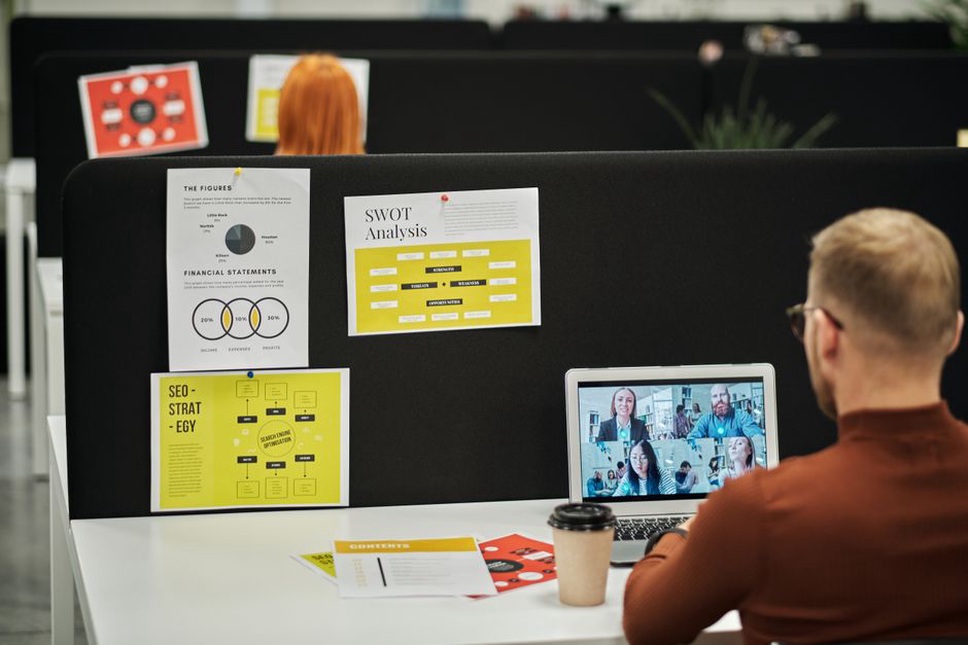
Give people more than one way to contribute
Some people prefer to speak; others need to type a question, use a reaction control or send a note afterward. Say how you’ll handle each route. A facilitator can check chat at natural pauses and read relevant comments aloud for anyone joining by phone. Decisions shouldn’t slip into a separate chat conversation that the rest of the group can’t follow.
Keyboard access matters too. When choosing a platform or preparing an activity, try joining, muting, opening captions and reaching chat without a mouse. A feature that works for the organiser may still be awkward with a keyboard or screen reader. Wikipedia’s overview of web accessibility explains why access depends on how people use digital tools, not just how an interface looks.
Don’t make participation depend on a rapid poll, a timed whiteboard task or a drag-and-drop activity without another way to respond. State the question aloud, allow time and accept answers by voice or message. If you use breakout rooms, explain their purpose beforehand and provide a way to ask for help without repeatedly moving between rooms.
Build pauses into the meeting
Long, uninterrupted calls can be difficult for people managing fatigue, pain or attention demands, as well as those following captions or interpretation. Put breaks on the agenda for longer meetings and say when discussion will resume. On a shorter call, a quiet pause between topics gives people time to catch up with notes or form a question. No one should have to explain publicly why they stepped away.
Good facilitation can solve problems that software cannot. Introduce each topic, identify speakers when needed and restate a decision before moving on. If several people start talking, pause and bring them back one at a time. A shared note-taker can record decisions and open questions so participants can focus on the discussion.
When technology fails, keep a second route open
Someone whose video freezes may still have audio; someone whose audio drops may still be able to use chat. Provide phone dial-in details if available, and keep the invitation easy to find so people can rejoin. If a key participant loses access during a decision, pause rather than treating silence as agreement. If the meeting cannot reasonably continue, send the outstanding question in writing with a clear response deadline.
Afterward, circulate concise notes in a readable, searchable format. Mark decisions, assigned tasks and points still open to correction. If you record the call, tell participants beforehand why, who will receive the recording and when it will be deleted. A recording cannot replace accessible live participation, and a written decision log is often quicker to consult than an hour of video.
Before the next call, try one ordinary task as a participant would: join through the invitation, switch on captions and open the agenda at a readable size. If the agenda disappears behind the video window, send it as a separate document before the meeting.